

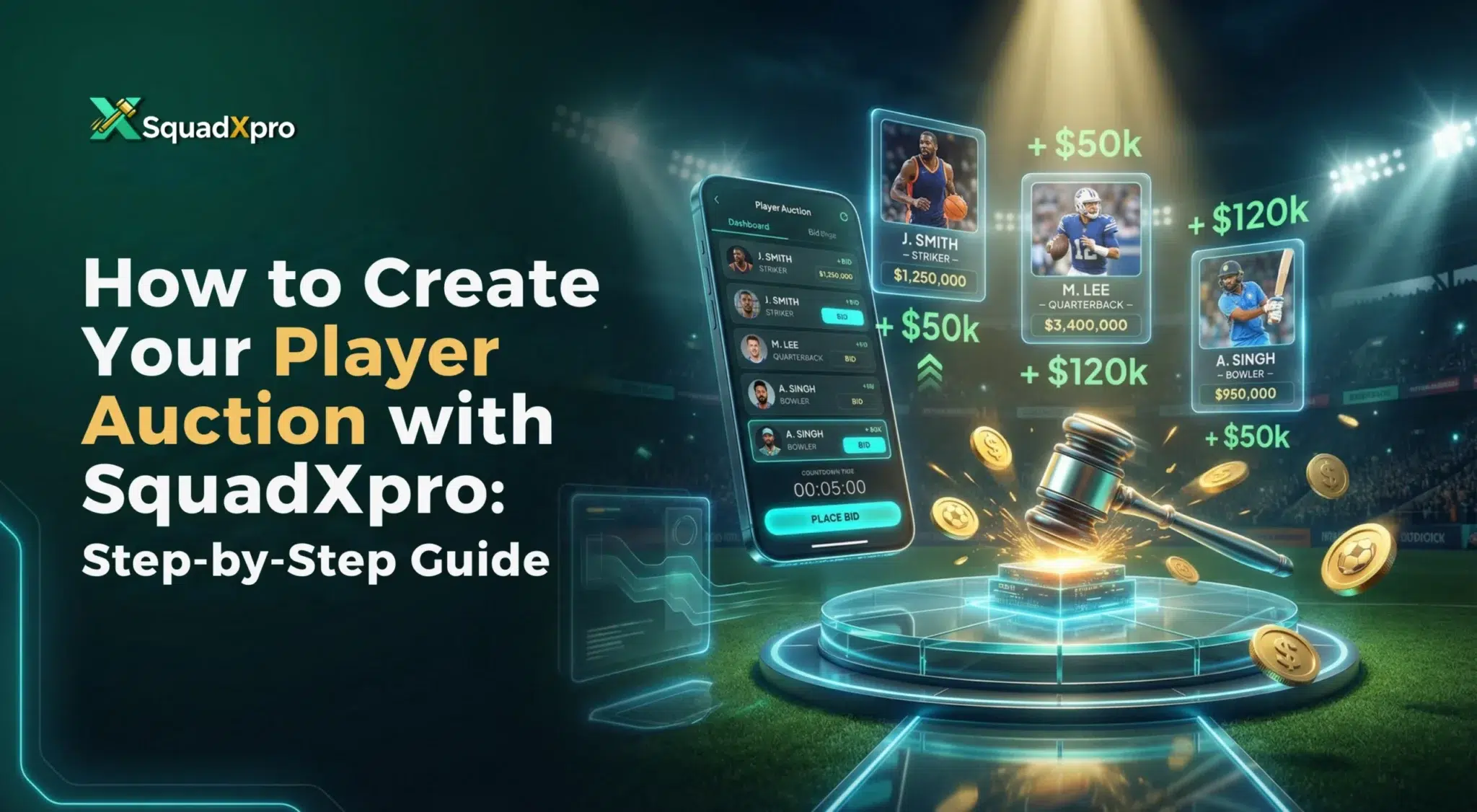
Organizing a player auction—whether for a cricket league, football tournament, fantasy sports event, or corporate competition—can be challenging without the right tools. SquadXpro makes player auctions simple, transparent, and fully digital.
In this guide, we’ll explain how to start an auction on SquadXPro in a simple step-by-step process.
Understanding What a Player Auction App Is
Player auctions are specialized software tools designed for organizing and managing live bidding events in sports tournaments, particularly for local, state-level, or district-level leagues or community events in cricket, football, kabaddi, and similar sports.
To get in-depth knowledge about the player auction app and how it works, click the link below: What Is a Player Auction App and Why Local Leagues Are Moving Online
Few Simple Steps to Start Your Player Auction on SquadXPro
From registering your working mobile number to accepting all the terms and conditions and submitting payment, starting live auctioning on SquadXPro is a straightforward process with just a few clicks and details. Before starting your online players’ auction, you’ll need an organiser account. Visit the official SquadXpro platform.
Click the link below to learn how to create an account on SquadXPro with a simple, step-by-step guide. The process is easy to follow and perfect for new users getting started quickly.
Step 1: Sign Up as an Auction Organizer on SquadXpro
To get started, create an organizer account on SquadXpro. It is a simple step where you have to fill in a few basic details.
Steps:
- Visit the SquadXpro platform
- Click on GET STARTED
- Enter your details to create your AquadXPro account
- Verify your account via OTP sent to your registered mobile Number.
- Once verified, you’ll get access to the SquadXpro Organizer Dashboard.
Step 2: Create a New Player Auction Event
From the dashboard, set up your auction.
How to create an auction:- Click “Create Auction”-Enter auction details like: Auction name (e.g., SquadXPoAuction 2026), Sport type (Cricket, Football, Kabaddi, etc.), Auction date and time, and mode of Auction, i.e., Online or live auction mode.
Choose a clear auction name to avoid confusion among participants.

Step 3: Set Auction Rules & Budget Settings
This step defines how your auction will run.
Key Settings to Configure: set team budget (credits or points), with Maximum and minimum players per team, set base price for players. Also, it is important to set the bid increment value along with the time limit per player during bidding.
Advanced Options (Optional):
- Auto-bidding
- Player category limits
- Unsold player re-auction
- Team-wise spending caps
These settings ensure fair play and smooth bidding throughout the auction.

Step 4: Add Teams and Team Owners
Next, you get an option to choose and add participating teams along with team owners.
Steps:- Go to Team Management and then click on Add Team. After that, you get an option to enter:
- Team name, Owner or manager name, Contact details
Each owner receives secure login credentials to participate in live bidding.

Step 5: Upload Player List
Once you’re done with picking teams, it’s time to add players for auction.
For Player Details You Can Include:- Player name, Playing role, their Base price, their Skill level or experience, and, in case you want to add Player image, though this is purely based on your choice.
You can upload players:
- Manually (for small auctions)
- Using Excel/CSV bulk upload (for large leagues)
Organizing players by categories improves auction flow.

Step 6: Run a Mock Auction (Recommended)
Before going live, conduct a test auction. Benefits of a mock auction include:- Helps owners understand bidding, Identifies technical issues early, and ensures timers and budgets work correctly.
SquadXpro’s preview mode allows you to test everything without affecting real data.

Step 7: Start the Live Player Auction
Once you have conducted a mock auction, you will get the basic understanding of how a live auction will work on Auction Day.
On auction day:- Log in as Organizer and click on Start Auction. This will give you access to introduce players one by one, thus enabling a glitch-free, timely live bidding
During the Auction:
- Teams place bids in real time
- Budgets update automatically
- The highest bidder wins the player
- Players are instantly assigned to teams
No spreadsheets. No manual tracking. This feature of Players Auction ensures hassle-free, affordable timesaving auctions.

Step 8: Handle Unsold Players & Re-Auction
If any player remains unsold SquadXPro Auction App has an option to:- Add them to the re-auction pool, adjust base price if needed, or reintroduce them later
This ensures maximum player participation and fair opportunities for all teams.

Step 9: Track Auction Analytics in Real Time
SquadXpro provides live insights such as:
- Team-wise budget usage
- Sold and unsold player lists
- Bid history
- Remaining credits per team
These analytics keep the auction transparent and well-controlled.
Step 10: Close the Auction & Publish Final Squads
Once bidding is complete:
- End the auction
- Generate final team squads
- Export reports in Excel or PDF
- Share results with teams and organizers
Final squads are ready instantly. You can track your events by clicking on the My Events Icon on the Dashboard for future reference.

Benefits of Using SquadXPro for Live Players Auctions
From traditional cricket auctions to football draft systems, the SquadXPro platform handles it all with ease and within budget. But to make it more convincing for you to choose our app for your auction, here are some significant benefits you’ll get with our players’ auction App.
- User-friendly: Live dashboards, with easy logging in and logging out via mobile otp options.
- Live Auction Bidding: Teams bid via mobile apps, with auto-increments and notifications for overbids.
- Mock auctions: to make the user familiar with how actual live auctions work.
- Automated calculations: our live auction interface is designed in such a way that auctioneers are not required to indulge in calculations; it is automated.
- Multi-sport auction support: auction for sports other than cricket, like kabaddi, football, etc.
- Player Management options: Profiles of players with stats, base prices, and retention options are easily managed for future reference.
- Scalability: the option of picking more than 10 to 12 teams make out auction app an attractive option for small and large leagues.
Conclusion
To conclude, we can say that creating an Event and organizing a live auction on SquadXPro is a simple, hassle-free process. Just a few simple steps can help you in organizing your own real-time bidding with the option of live streaming.
Whether for cricket, football, kabaddi, or local leagues, the platform offers scalability, transparency, and ease of use—making it the ideal solution for Live Players Auction Organizers.